WINDOWS
Microsoft Defender SmartScreen During Dialogica Installation
How to verify the Dialogica installer and continue when Windows displays a reputation or app-source notice.
Category: Windows | Audience: Windows users and IT | Suggested slug: microsoft-defender-smartscreen-dialogica
What the notice means SmartScreen may say that Dialogica is not commonly downloaded when a signed installer or release has not yet built broad download reputation. The notice alone does not mean the installer is unsigned or malicious.
Before continuing
Use an official source: Download Dialogica from your organization's Dialogica portal or another link provided by Dialogica Support.
Check the publisher: Windows should identify the publisher as Dialogica Inc. The publisher line may also include certificate location details.
Check the file: The filename and version may differ from the examples in this guide, but the installer should be the Dialogica setup executable you intended to download.
Do not disable Windows security You do not need to turn off Microsoft Defender, SmartScreen, or other Windows security controls to install a verified Dialogica installer.
Notices you may see
Microsoft Edge: The download is not commonly downloaded or Edge asks you to confirm that you trust the file.
Microsoft Defender SmartScreen: Windows protected your PC when the installer is opened.
Windows app recommendations: The app you are trying to install is not a Microsoft-verified app.
If Microsoft Edge blocks the download
Edge may hold the installer in Downloads until you confirm that you trust the file.
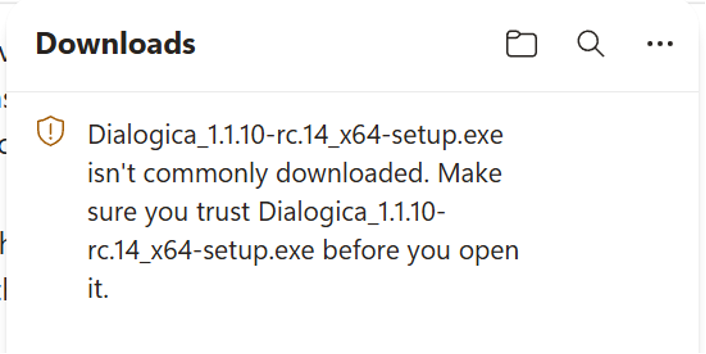
Edge may mark a new Dialogica installer as not commonly downloaded.
Step 1 | Open Downloads Open the Downloads panel from the Edge toolbar or press Ctrl+J.
Step 2 | Open the warning details Select the warning or its More actions menu. The exact button labels can vary by Edge version.
Step 3 | Verify the publisher In the trust pane, confirm that the file is the Dialogica installer and the Publisher identifies Dialogica Inc.
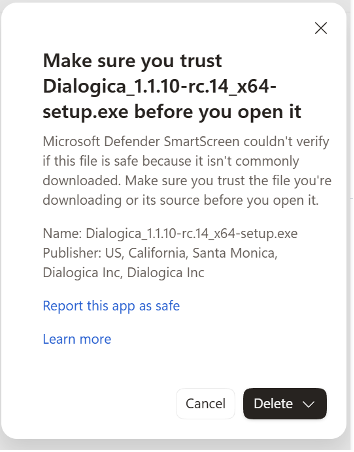
The detailed Edge notice displays the installer name and publisher.
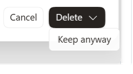
Open the menu next to Delete and select Keep anyway.
Step 4 | Keep the installer Open the menu next to Delete and select Keep anyway. Then open the downloaded installer.
If Windows shows 'Windows protected your PC'
This SmartScreen prompt can appear when you open the installer after downloading it.
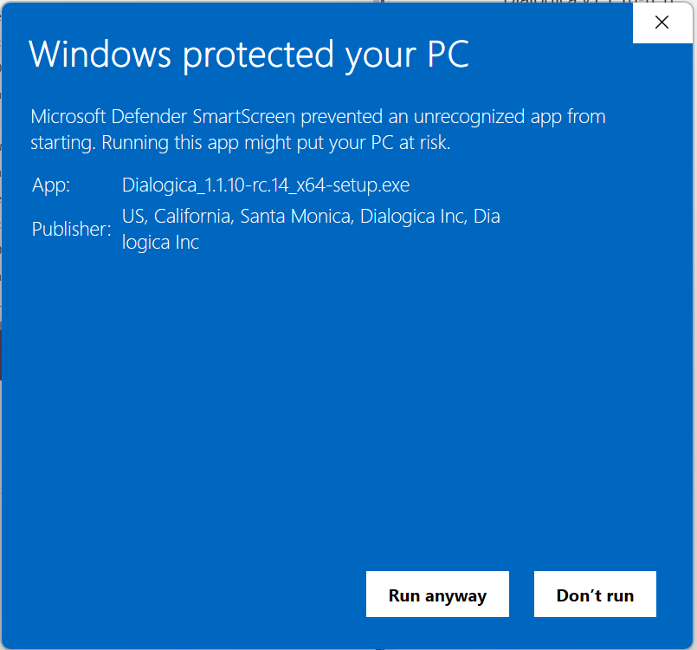
SmartScreen details should identify Dialogica Inc as the publisher.
Step 1 | Show the details If the prompt initially shows only Don't run, select More info to display the app name, publisher, and Run anyway option.
Step 2 | Confirm the publisher Verify that the publisher identifies Dialogica Inc. The displayed line may include location information before the company name.
Step 3 | Continue Select Run anyway to start the Dialogica installer.
Stop if the publisher does not match Do not select Run anyway if Windows shows Unknown Publisher or a company other than Dialogica Inc.
If Windows shows a Microsoft-verified app prompt
This is a Windows app-source recommendation prompt. It is separate from the blue Microsoft Defender SmartScreen screen.
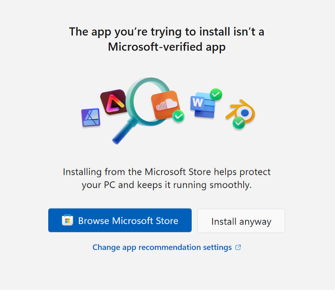
Select Install anyway to continue with the Dialogica installer.
Step 1 | Confirm the installer source Make sure you downloaded Dialogica from the expected official source.
Step 2 | Continue installation Select Install anyway. You should not need to change the global app recommendation setting.
If the publisher is different or missing
Do not continue: Close the prompt and do not run the installer if Windows shows Unknown Publisher or a publisher other than Dialogica Inc.
Download a fresh copy: Return to the official Dialogica source provided by your organization or Dialogica Support and download the installer again.
Contact support: If the publisher still does not match, contact Dialogica Support. Include the installer filename and a screenshot without confidential client information or work product.
Organization-managed Windows devices
Your IT administrator may block Keep anyway, Run anyway, or Install anyway through device policy. If a required option is unavailable, contact your IT team rather than changing security settings yourself.
Was this article helpful?
That’s Great!
Thank you for your feedback
Sorry! We couldn't be helpful
Thank you for your feedback
Feedback sent
We appreciate your effort and will try to fix the article