CONNECTIONS & INTEGRATIONS
Managing Your Dialogica Connections
Connect Dialogica to the services your organization has made available to you.
Category: Connections & Integrations | Audience: All users | Suggested slug: managing-dialogica-connections
What you see may differ Available integrations depend on your organization's Dialogica plan or contract and on the providers enabled by your organization administrator.
How connection availability works
Step 1 | Plan or contract
Your organization's Dialogica plan determines which provider integrations can be made available.
Step 2 | Administrator enablement
An organization administrator enables an included provider in the Dialogica Admin Portal. Enabling a provider makes it available to members; it does not connect an individual user's account.
Step 3 | User authorization
Each user opens Dialogica Settings > Integrations and connects their own account using the sign-in and consent process for that provider.
DIALOGICA HELP CENTER / CONNECTIONS & INTEGRATIONS
For organization administrators
In the Admin Portal, open Integrations to review provider availability and enablement.
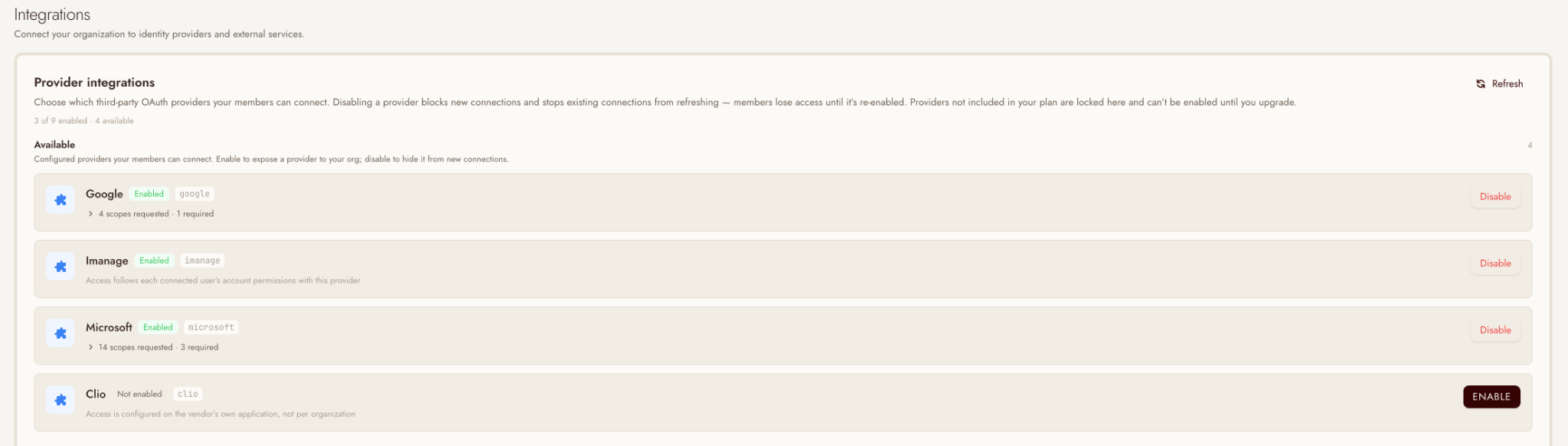
Admin Portal: provider integrations available to the organization.
- Enabled: Members can connect the provider from the Dialogica app.
- Not enabled: The provider is included and configured, but members cannot connect it until an administrator enables it.
- Locked or unavailable: The provider is not included in the current plan or contract and cannot be enabled until availability changes.
Before disabling a provider Disabling it blocks new connections and prevents existing connections from refreshing. Members may lose access until the provider is enabled again.
View integrations available to you
Open Dialogica and go to Settings > Integrations. The Available section shows services that your organization permits you to connect.
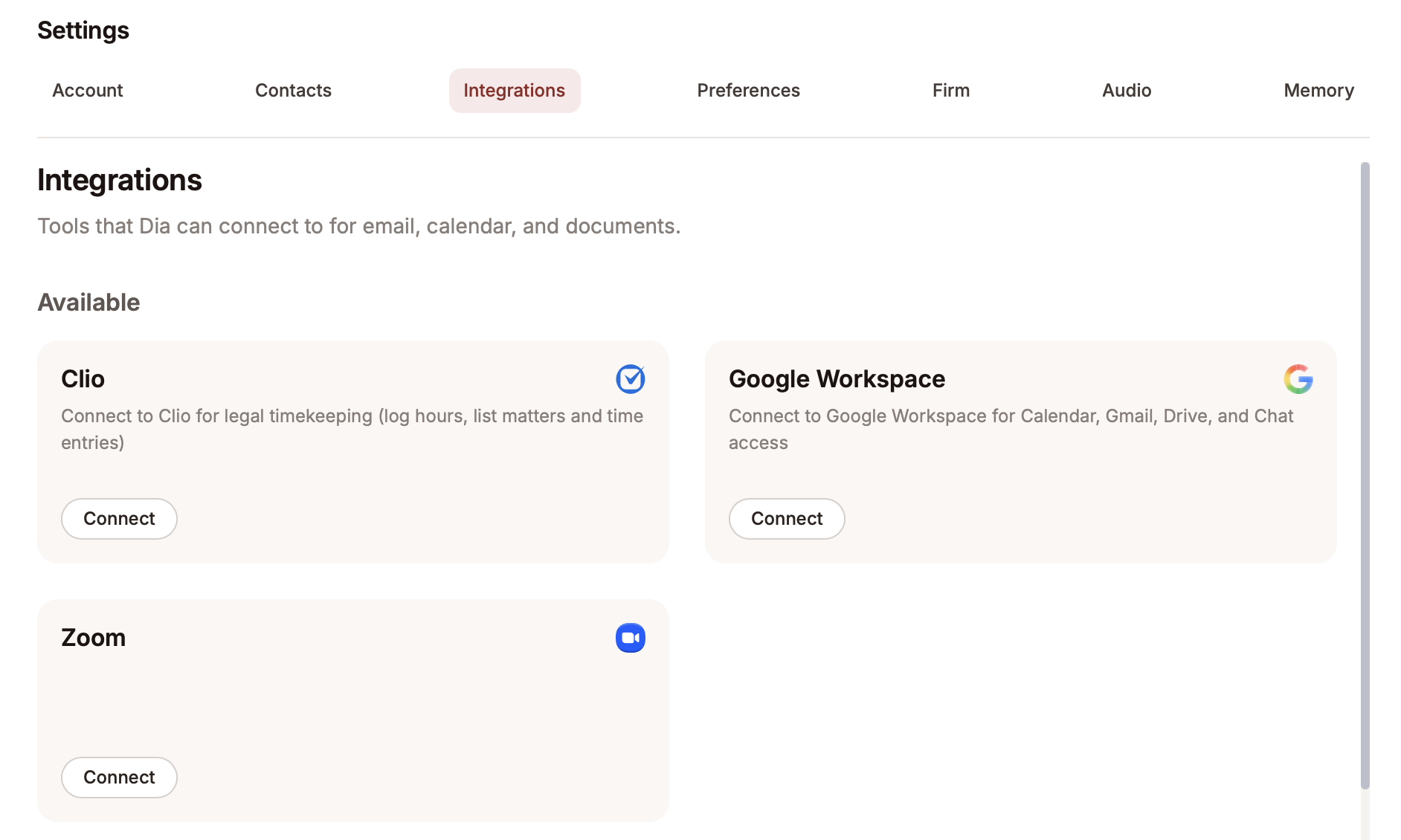
Settings > Integrations: select Connect on an available provider.
Connect a service
Step 1 | Select Connect
Choose the provider you want to use from the Available section.
Step 2 | Sign in with the correct account
A browser window may open. Sign in using the work account authorized by your organization.
Step 3 | Review and approve access
Follow the provider's on-screen authorization steps. If the provider requires administrator approval, contact your organization's IT administrator.
Step 4 | Return to Dialogica
After authorization completes, return to the app. The provider should move to the Connected section.
Your existing permissions still apply Dialogica uses the account you connect and operates within the permissions that account already has with the provider.
If a service is not listed
A missing integration is usually not available under the organization's current plan or has not been enabled in the Admin Portal. Ask your administrator to confirm both settings.
DIALOGICA HELP CENTER / CONNECTIONS & INTEGRATIONS
Manage connected integrations
The Connected section shows the accounts currently authorized for Dialogica. Controls vary by provider and by your organization's configuration.
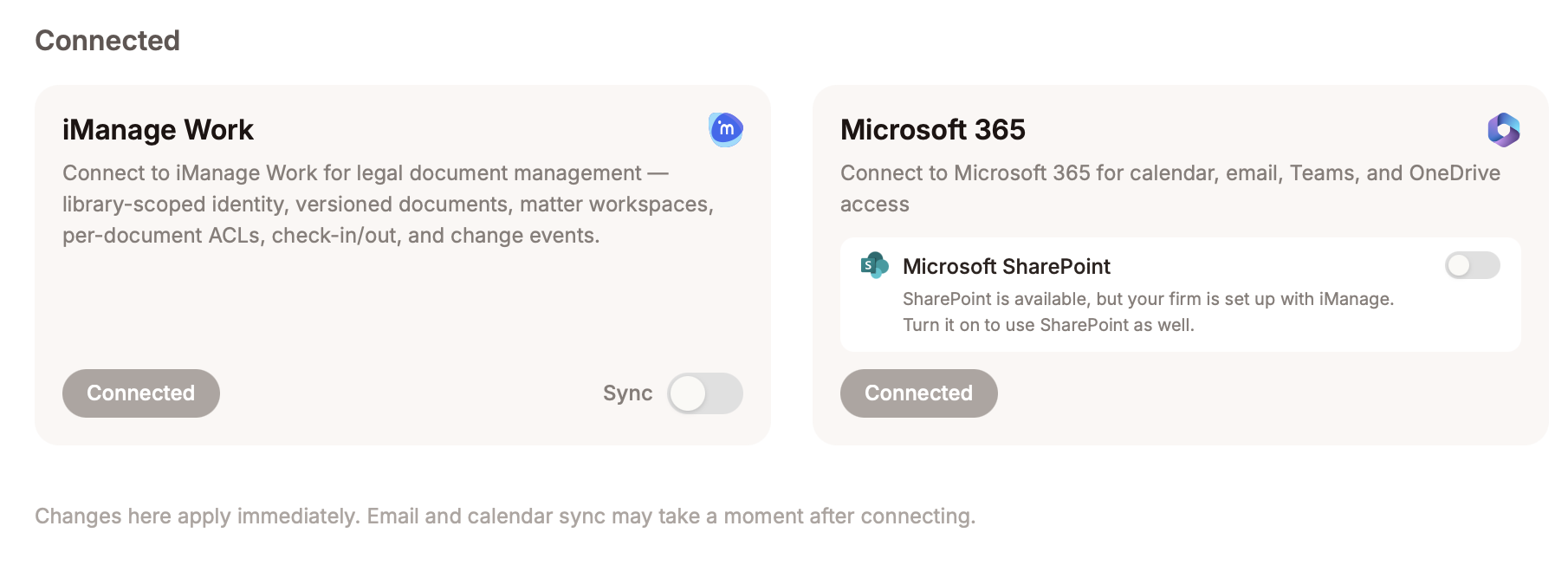
Connected integrations may include provider-specific sync or service controls.
- Connected: The provider account is authorized for use in Dialogica.
- Sync controls: Some providers include a Sync toggle or similar provider-specific setting.
- Optional services: A connected provider may expose additional services, such as SharePoint under Microsoft 365, when permitted by your organization.
- Timing: Changes apply immediately, although email and calendar synchronization may take a moment after connecting.
Reconnect a service
If a connection needs attention, select the provider and repeat the on-screen sign-in or authorization steps. This may be required after a password change, expired authorization, or organization change.
Troubleshooting
- The provider is not shown: Ask whether it is included in the plan and enabled in the Admin Portal.
- Administrator approval is required: Contact your IT administrator and provide the provider name.
- Sign-in or synchronization does not finish: Return to Dialogica, retry with the correct work account, and allow synchronization a moment to complete.
- A setting cannot be changed: It may be controlled centrally by your organization.
Need help?
Contact your IT administrator or Dialogica Support. Include the provider name, whether it appears under Available or Connected, and a screenshot without confidential client information or work product.
Was this article helpful?
That’s Great!
Thank you for your feedback
Sorry! We couldn't be helpful
Thank you for your feedback
Feedback sent
We appreciate your effort and will try to fix the article