GETTING STARTED
Update Dialogica
Keep Dialogica current with the latest improvements, fixes, and security updates.
Category: Getting Started | Audience: All users | Suggested slug: update-dialogica
macOS requirement Dialogica must be installed in the Applications folder before you update it. Do not run the app from Downloads or directly from the mounted installer window.
Before you begin
- Finish any active recording, transcription, or other work in progress before starting the update.
- Make sure your device is connected to the internet.
- On macOS, confirm that Dialogica appears in Finder > Applications.
Where updates appear
Dialogica checks for available updates. You can begin an update from either of these locations:
- The Update available card shown in the corner of the app.
- Settings, under App version.
Option 1: Use the update notification
When an update is ready, Dialogica displays an Update available card in the corner of the app.
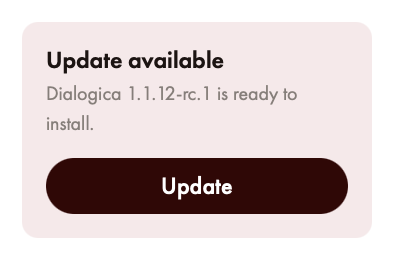
Select Update to begin installing the available version.
Step 1 | Select Update
Click Update on the notification card.
Step 2 | Allow the update to install
Keep Dialogica open while the update is prepared. Follow any prompt that appears on your screen.
Step 3 | Reopen Dialogica
The app may close during installation. If it does not reopen automatically, open Dialogica again when the update is complete.
Option 2: Check from Settings
You can also check for updates manually from the App version section in Dialogica Settings.

The App version section shows your installed version and any update ready to install.
Step 1 | Open Settings
In Dialogica, open Settings and locate App version.
Step 2 | Check for an update
Select Check for updates. If a newer version is available, it will appear below your current version.
Step 3 | Download and install
Select Download & Install, then allow the update to finish.
Confirm the update
After Dialogica reopens, return to Settings > App version. The version shown should match the version you installed.
If no update is available, Dialogica is already current or the newest release has not yet been made available to your device.
If you use a Mac
Important If Dialogica is not already in Applications, quit the app before moving it.
Step 1 | Quit Dialogica
Close Dialogica completely.
Step 2 | Move the app
Open Finder and move Dialogica into the Applications folder. If you opened Dialogica from a downloaded installer, drag Dialogica to Applications first.
Step 3 | Open the installed copy
Open Finder > Applications, then open Dialogica from there and try the update again.
Troubleshooting
- The update does not appear: Select Check for updates, confirm that you are online, then quit and reopen Dialogica.
- The update will not install on macOS: Confirm that the app is in Applications and is not running from Downloads or the installer image.
- The version did not change: Restart Dialogica and check App version again. If needed, run Download & Install one more time.
- A security or administrator prompt appears: Follow your organization's approved process. Do not disable antivirus, endpoint protection, or other security controls.
Need help?
Contact Dialogica Support and include your operating system, the version shown under App version, the version you are trying to install, and a screenshot of any message you receive.
Was this article helpful?
That’s Great!
Thank you for your feedback
Sorry! We couldn't be helpful
Thank you for your feedback
Feedback sent
We appreciate your effort and will try to fix the article